





Calgary Digital Marketing by Ducktoes
Ducktoes is Calgary’s top digital marketing agency. We are no longer offering computer repair services. Should you require repair services, click here for more information. Our new location is here: randomrepair.ca.
Calgary digital marketing firm Ducktoes offers a wide array of digital marketing services. Our team includes published writers able to create excellent content for your website, blog or social media as well as seasoned SEO experts, who know how get your company higher in organic search results. So, no matter your digital marketing needs, our team is here to help build your online presence and help you make money!

How is Calgary digital marketing different from Calgary SEO?
Digital marketing is a broader term that includes the company’s entire online footprint. So an SEO specialist would focus on getting your company more views and clicks through search engines while a digital marketing manager would focus on social media, branding, paid advertising, and any other aspect of your company’s online marketing strategy.
Ducktoes offers both Calgary SEO services as well as Calgary digital marketing services. That’s because we want to meet yours needs as a customer. SEO is also included as a part of our digital marketing package. It depends on your business’s individual needs whether SEO package or a digital marketing package is right for you. So give us a call today to find out which is right for you.
Digital Marketing Calgary vs. SEO Calgary
Not sure which services your company needs? Here are five key differences between SEO (Search Engine Optimization) and digital marketing:
Scope: SEO is a specialized strategy within digital marketing that focuses on improving a website’s visibility in organic search engine results like Google and Bing. Digital marketing is broader, encompassing SEO along with other strategies like social media, email, content marketing, and PPC (Pay-Per-Click) advertising.
Objective: The primary goal of SEO is to increase organic traffic to a website by ranking higher in search engine results pages (SERPs). Digital marketing aims to promote a brand, product, or service through various online channels to reach a wider audience.
Techniques: SEO involves techniques such as keyword research, on-page optimization, and link building to enhance search rankings. Digital marketing includes these SEO tactics but also utilizes other methods like social media campaigns, email newsletters, and online ads.
Measurement: Success in SEO is measured by improved rankings, increased organic traffic, and better user engagement. Digital marketing measures success through a variety of metrics, including conversion rates, click-through rates, and overall ROI (Return on Investment) from all digital channels.
Timeframe: SEO often takes longer to see results, as it builds credibility and rankings over time. On the other hand, Digital marketing can produce quicker results. Especially with paid advertising campaigns that generate immediate visibility and traffic.
These distinctions highlight the complementary nature of SEO and digital marketing, where SEO is a crucial component that fits within the larger digital marketing strategy.

What are the different aspects of digital marketing?
SEO (Search Engine Optimization)
SEO is always a part of the Calgary digital marketing package at Ducktoes. It’s integral to the success of your business. Our digital marketing package builds up from SEO as the foundation.
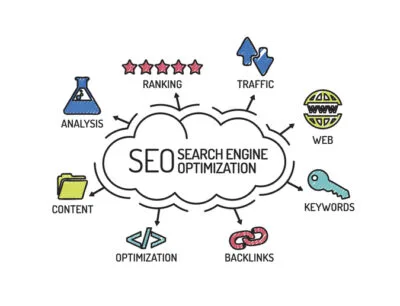
Search Engine Optimization (SEO) enhances the visibility and ranking of web content within search engine results pages (SERPs) like Google and Bing. It involves combining many different strategies aimed at optimizing various aspects of a website to align with search engine algorithms. Through keyword research, content optimization, and technical adjustments, SEO improves a website’s relevance and authority in relation to specific searches people make. This involves writing high-quality, informative content that customers are looking for as well as stays within search engine guidelines. SEO also uses off-page techniques such as link building and social media engagement to add to a website’s credibility and trustworthiness.
SEO changes with search engine algorithms and changes in how people use websites. So it involves ongoing analysis and adaptation. SEO professionals examine the effectiveness of their strategies and make informed changes to increase organic search visibility and drive traffic of potential customers.
PPC (Pay Per Click)
Pay per click (PPC) advertising is a digital marketing model where advertisers pay a fee each time their ad is clicked. At Ducktoes, we often use PPC as a part of our digital marketing strategy to augment organic search. But it depends on the needs of your business and your customer base. First and foremost, Ducktoes works to increase your organic search results through SEO and uses PPC to augment your digital reach in special circumstances.
PPC is a strategic method employed to drive targeted traffic to websites and achieve specific marketing objectives. PPC platforms, such as Google Ads and Bing Ads, allow advertisers to bid on keywords relevant to their target audience, ensuring their ads appear prominently in search engine results and on various online platforms.
PPC offers several potential benefits for businesses. First, it provides immediate visibility, enabling advertisers to reach customers at the moment they are actively searching for products or services. Second, PPC campaigns offer precise targeting options, allowing advertisers to tailor their messaging to specific demographics, locations, and interests. This precision enhances the efficiency of marketing spend by directing resources towards the most promising prospects.
Finally, PPC offers robust performance tracking and analytics tools, enabling advertisers to measure the effectiveness of their campaigns in real-time and make data-driven decisions to maximize returns. In a competitive online world, where organic reach is increasingly hard to achieve, PPC stands as a vital tool for businesses seeking to amplify their online presence, drive qualified leads, and achieve tangible marketing outcomes. However, Ducktoes will never use PPC to replace organic search.

Content Marketing for Businesses
Ducktoes offers content marketing as a key aspect our Calgary digital marketing services. Our staff includes published writers who have years of experience writing and editing digital content for a discerning audience. We use our client’s knowledge base to build strong, well-written content that increases your business’s reach. We use ethical content practices and follow the Alberta style guide for web writing.
Content marketing is a strategic marketing approach focused on creating valuable, relevant, and consistent content to attract and retain customers. It involves informative articles, engaging videos, and other forms of content tailored to address the needs, interests, and pain points of target customers. Ducktoes delivers high-quality content through websites, blogs, social media platforms, email newsletters, and more. That’s how we build build trust, establish authority, and build long-term relationships with our customers and future customers.
The importance of content marketing lies in its ability to drive audience engagement, generate leads, and nurture customer loyalty. Content marketing seeks to provide genuine value to consumers rather than just promotion of your companies services. This builds trust with your customers and shows confidence in your expertise as a service provider.
Content marketing is key in improving search engine visibility, as search engines prioritize websites with relevant and authoritative content. By consistently producing valuable content optimized for search, businesses can enhance their organic reach and attract qualified traffic to their digital properties. So it is a vital part of digital marketing. And it works with other forms of SEO to get your business higher on google and improve your sales.
Social media marketing Calgary
Calgary SEO firm Ducktoes offers social media marketing as an aspect of our digital marketing Calgary package. Depending on your goals, social media can be a valuable way of reaching more customers and retention of your existing customers. For some companies good social media is an absolute necessity whereas for others, it makes more sense to put more emphasis on traditional SEO and content marketing.
Social media marketing means promoting products, services, or brands through various social media platforms like Facebook and Instagram. So it involves creating and sharing content on these platforms. This content is tailored to build your sales and customer base through bringing people to your site. It can also mean talking to customers and making sales right on the social media platform itself.
The importance of social media marketing lies in its unparalleled ability to reach big audiences. And these audiences are highly targeted across different groups of people with varying backgrounds and interests. Social media marketing enables brands to be more conversational and personable in their online presence, building relationships with their customers.
Social media marketing is instrumental in driving website traffic, enhancing brand visibility, and generating leads and conversions. So Ducktoes social media marketing offers businesses a powerful platform to amplify their message. Call today to get started on success!
Ducktoes No Longer Provides Computer Repair Services
If you need computer or electronic repair, our techs have started a new business at this address:
Random Repair
2845 23 St NE unit 109
Calgary, AB T2E 7A4
Canada